Build an attributed GEO blog with Wang
GEO helps your business become findable and citable in AI answers. Every newly provisioned Wok includes a standard blog, a research-and-drafting worker, attribution controls, and a review queue. For an older Wok, Wang can add that bounded GEO foundation without replacing its existing site or customer data. You decide the author, schedule, and what gets published.
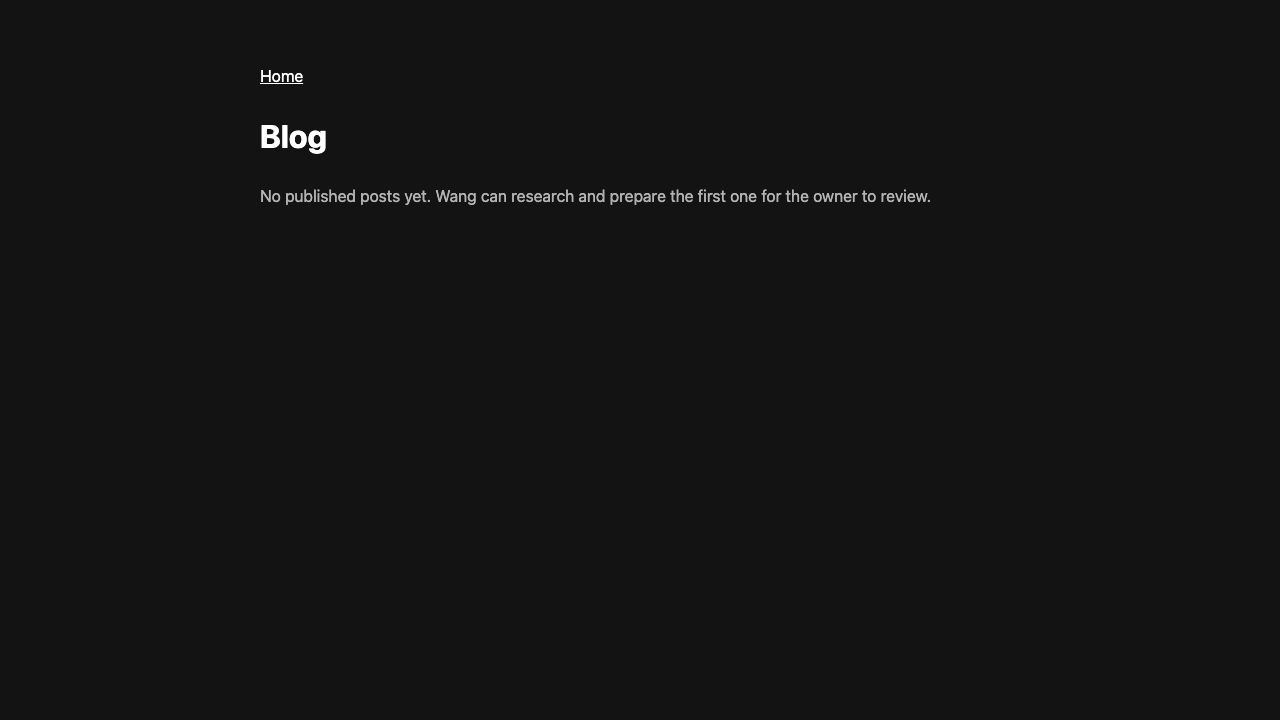
/blog/. It remains empty until you approve and publish a post.1. Tell Wang what to research
Open your Wok's GEO content panel, or tell Wang your audience, subject, author, research languages, writing language, and preferred review cadence. A useful first message is:
Set up weekly GEO articles about bookkeeping for independent
restaurants. Search in English, Spanish, and Japanese, plus an
English Reddit search. Write in English. Attribute them to Maya
Chen at Northstar Books.
Ask me to review every draft before it is published.
Wang will ask for any missing author details, set up the research worker, confirm that it can run, and ask you to approve the schedule. The worker is not scheduled automatically.
Confirm the author
Give Wang the real person or organization that should appear on the byline. Add an author page or profile URL when you have one. A post cannot become public until its attribution is confirmed.
Choose the subject and audience
Describe the questions your customers ask, the products or services you want to support, and the region or industry that matters.
Choose research and writing languages
Pick up to five search languages and one language for the finished post. The dedicated English Reddit search is a separate switch, so it remains available even when the main research is multilingual.
Choose a cadence
Choose daily, weekly, or monthly. Review the exact timing in your coding agent before it creates the automatic schedule; the dashboard then lists the managed schedule.
2. Let the worker research and draft
At each approved run, TellWang's private model reads a bounded snapshot of the live homepage and combines its products, audience, location, and terminology with your configured topics. It plans keywords and a question angle in every research language, then runs those searches plus the optional English Reddit search. If the homepage is unavailable, research uses your topics. It stores the plan, result links, and snippets with the research run before drafting through the model gateway.
- A passing article enters the draft API as Pending; review it through REST or a connected MCP client.
- A weak article gets one guided rewrite. If it still fails, the run is recorded and no draft is queued.
- Research notes, sources, and revisions stay private while the draft is under review.
- The dashboard shows whether the private model used the live site and lists the planned keywords.
- Reddit supplies audience questions and pain points. The worker instructs the model to corroborate factual claims with non-Reddit sources.
3. See what needs your attention
Pending drafts appear in the Wok's Drafts view and in your organization feed. The owner digest collects new items into one daily email when there is activity. It does not send a separate email for every worker run.
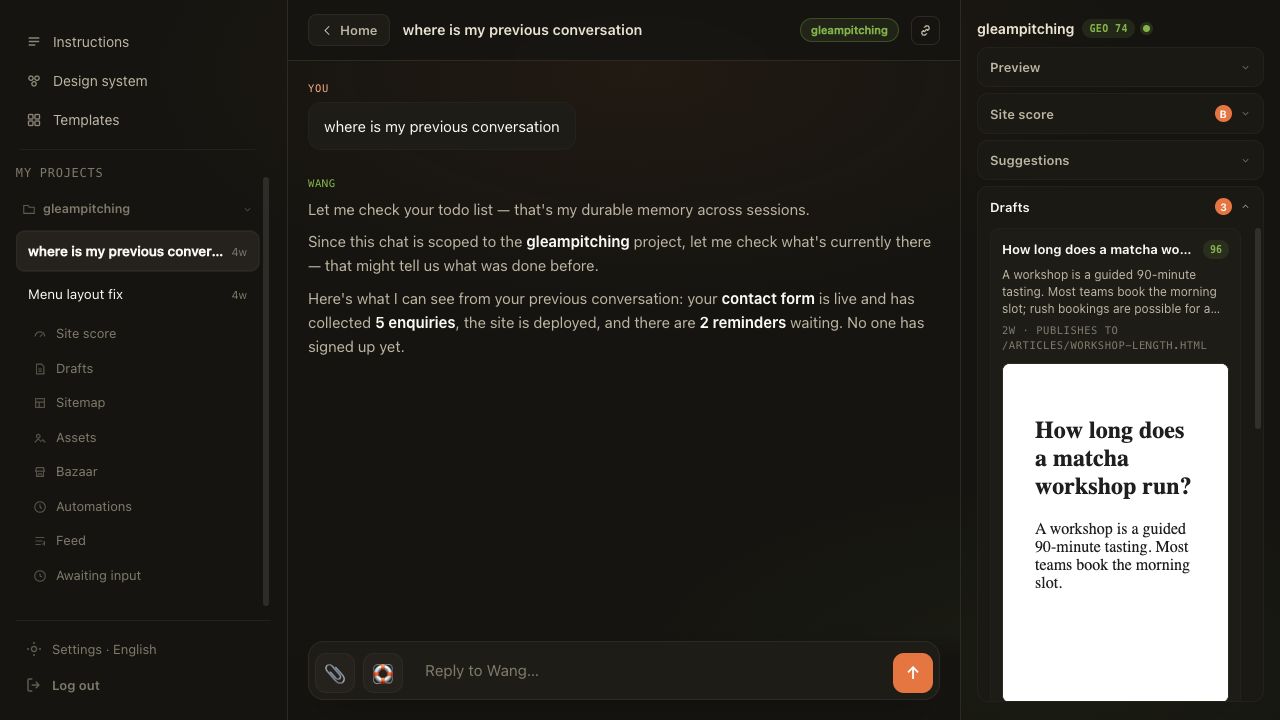
4. Review and publish
Read the entire article before publishing. Check that the answer reflects your business, the author is correct, any factual claims are supported, and the tone sounds like you.
- Approve & publish is available to workspace owners and admins; it makes the post public and adds it to the blog and sitemap.
- Reject keeps it off the public site. Include a reason so the next revision has useful direction.
- Ask Wang when you want a rewrite, a different angle, or help checking a claim.
5. Read your GEO stats
Read the site score through the API or a connected MCP client to see how well the public pages answer questions and expose machine-readable information. The dashboard can generate a diagnosis prompt before a fix and a verification prompt after publishing a change.
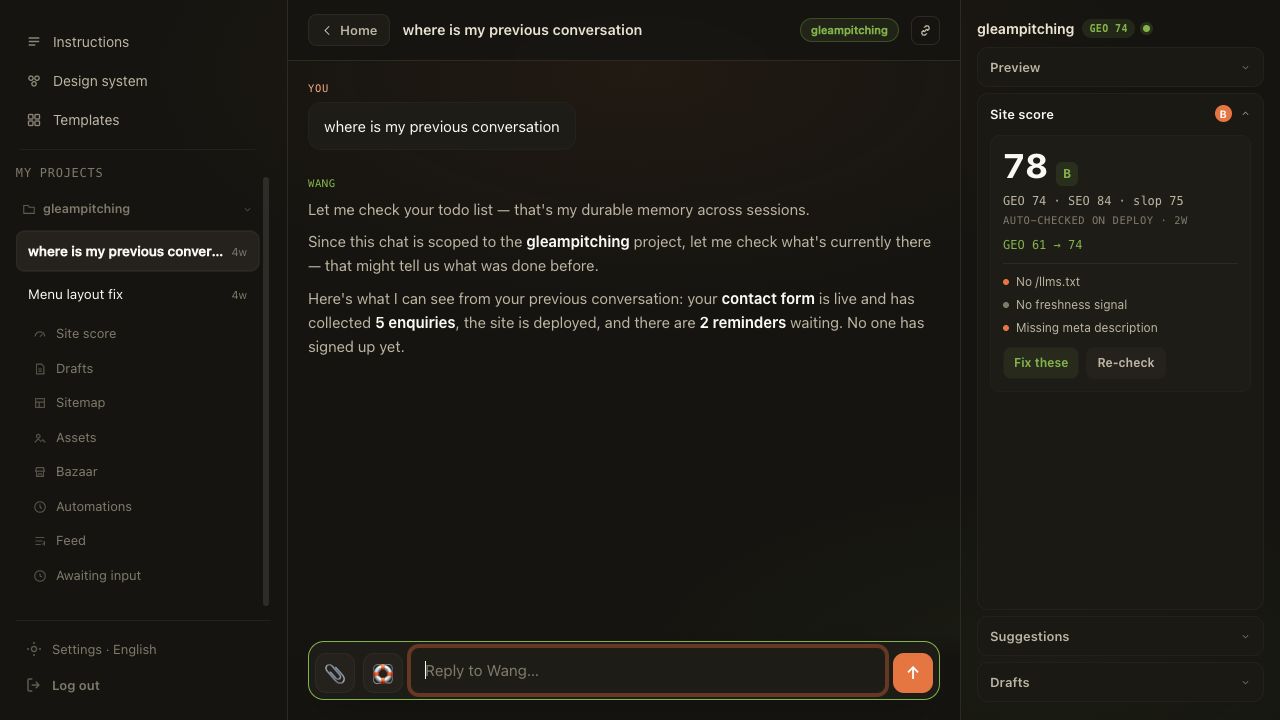
| Score | What it tells you |
|---|---|
| Overall | A combined view of the site's discoverability and answer quality. |
| GEO | Whether AI search systems can understand, extract, and cite useful answers from the site. |
| SEO | Technical and page-level signals used by traditional search engines. |
| Slop | How well the writing avoids vague, repetitive, or unsupported filler. Higher is better. |
Compare the site with live AI answers
Open Brand voice in the dashboard and enter the public domain plus the brand name customers use. TellWang reads the site, checks a current Google AI Overview and ChatGPT Search answer, and shows a drift score. A higher score means those answers leave out more of the website's prominent language; it is not a search ranking or a sentiment score.
The result keeps each AI answer and its clickable sources visible, explains likely causes, and suggests grounded site changes. Google does not show an AI Overview for every query, so the panel says Not shown when that happens instead of filling the gap with generated text. Choose Generate fixes with Wang to carry the evidence and suggested changes into a Wok-scoped build.
6. Reply to reader email
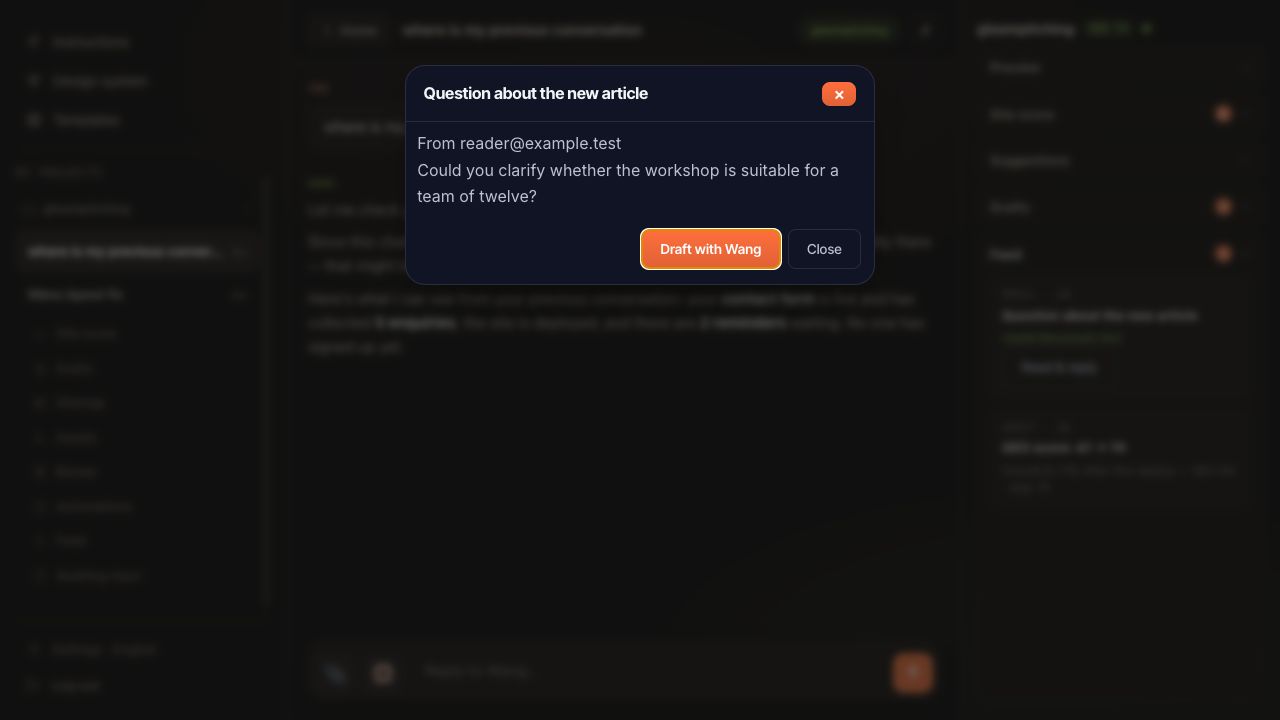
When your Site receives an email, open it from the Project Email workspace and select Draft with Wang. Describe what the reply should achieve, review the zero-credit estimate, then confirm the metered draft. Wang uses the selected message and approved Project knowledge as context; the email cannot grant tools or permissions.
Your regular check-in
- Read the owner digest or open the organization feed.
- Review every pending draft and its attribution.
- Approve, reject, or ask Wang for a revision.
- Open the site score after publishing and address the highest-impact finding.
- Check Automations if an expected run or draft is missing.
If something does not look right
- Wang asks for an author: provide the exact person or organization name and, if available, a profile URL. Wang will not invent attribution.
- No draft appeared: check Automations for the last run. Ask Wang to inspect the worker log and the organization's model-gateway balance.
- A run was rejected: the quality gate rejected both the first draft and its one guided rewrite. Give Wang more specific audience or source guidance before the next run.
- The score looks old: choose Re-check after the changed page is public.
- Your Wok already existed: ask Wang to add the GEO foundation; it keeps your current blog and content.